
Building a DIY Dry Bilge Pump for a Canal Boat

I have a perfectly working automatic bilge pump on my steel canal boat. However, due to its design, it always leaves about an inch (2.5 cm) of standing water behind. Because a damp environment inside a metal boat is a recipe for rust, this always worries me.

When the main bilge pump kicks in, it removes high volumes of water very quickly, but that last little bit is incredibly annoying. While looking for a solution, I came across the commercial SeaFlo Dry Bilge system. It looked interesting, but it is quite expensive, and it seems you cannot easily replace individual components if they fail.

My objective wasn’t to replace my main bilge pump entirely, but rather to find a way to suck out that final inch of nuisance water after the main pump has finished its job.

Sourcing the Components

I decided to see if I could build a custom system myself. While browsing Amazon, I found what looked like the ideal pump—which actually happened to be made by SeaFlo: a Seaflo 12V 1.2 GPM 35 PSI Water Pressure Diaphragm Pump for £23.99. Because diaphragm pumps can pull a vacuum and run dry without immediate damage, it was perfect for the task.

To protect the pump, I grabbed a POFET 3/8-inch inline water pump strainer to filter out any large debris. I also purchased 10 meters of 10mm (⅜”) PVC hose to plumb everything together, along with some pipe clamps to hold it all securely in place.

Prototype 1: The Tupperware Container

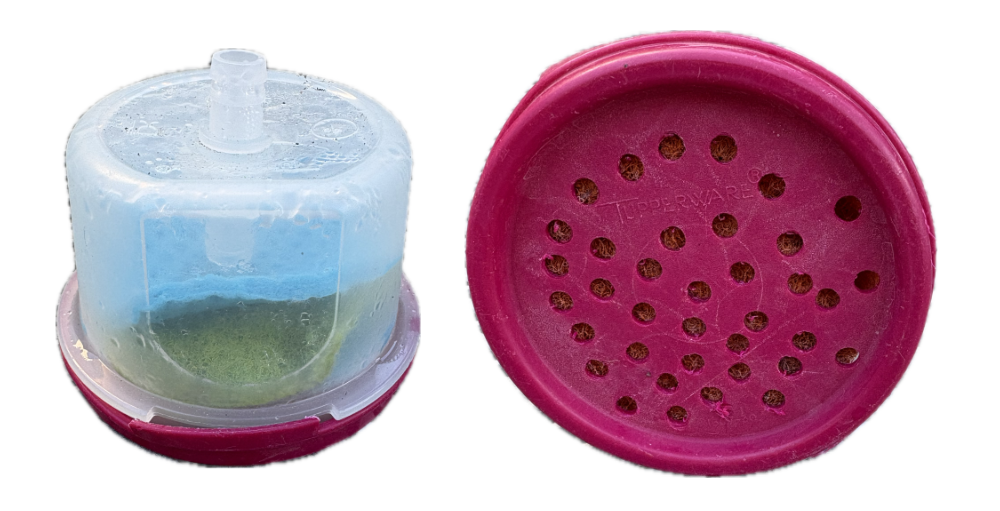
After assembling the pipe, pump, and inline filter, I needed to figure out how to actually scavenge the water from the floor. A quick look through the kitchen cupboards turned up an old Tupperware container.

I installed a 10mm (⅜”) push-fit bulkhead adapter into the bottom of the container and drilled a series of small intake holes around it. I then packed the inside with discs of standard washing-up sponges and scouring cloths to act as a fine filter, securing them in place with the container lid.

While this successfully proved the suction concept, it had two major flaws:

  1. It was too light and kept floating away in the water.
  2. If I manually held it down, it would immediately suck itself flat against the bottom of the bucket, cutting off the flow.

Prototype 2: The Weighted Tesco Pots

To fix these issues, I took a trip to Tesco and picked up some cheap plastic storage pots with lids. I also bought some thicker sponge material, and visited a local fishing tackle shop to get some lead weights.
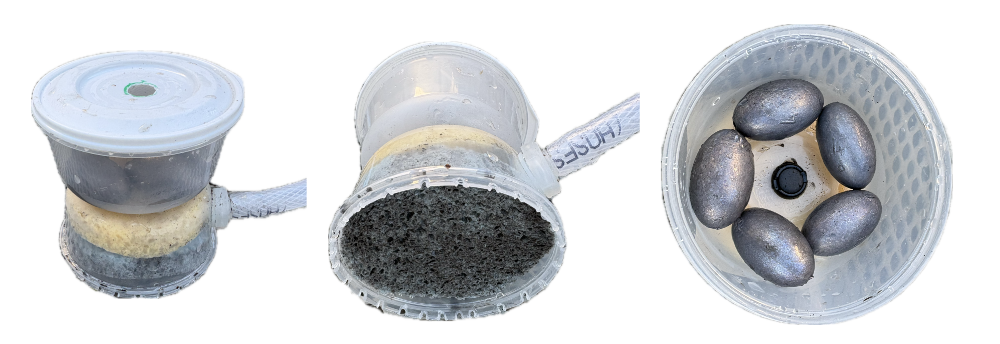
This time, I mounted the hose connector into the side of the pot rather than the bottom, which made the unit much more stable and less likely to tip over from the tension of the hose. I mated two of the pots together using a spare car dashboard clip left over from a previous DIY project.

Using a soldering iron, I carefully melted small 2mm slots along the bottom rim of the pot. This small modification successfully stopped the container from creating a vacuum seal against the floor. I left a pre-existing hole in the lid intact so air could easily escape, allowing water to fill the container without getting trapped.

Testing and Next Steps

Tested the complete setup in a standard household bucket, and the results were highly impressive. It completely emptied the bucket in under five minutes. Because the bottom of my test bucket is slightly raised in the centre, a tiny amount of water was missed around the edges, but the intake foot itself worked flawlessly.
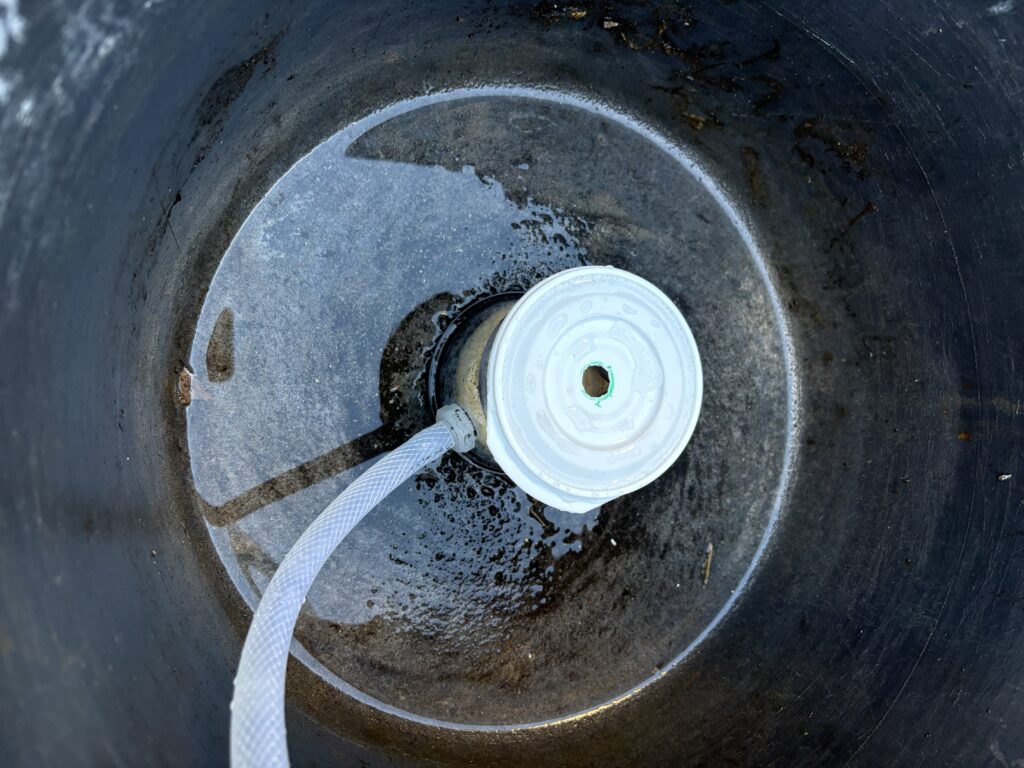
Once the bucket was empty, the line started sucking air and made a distinct “drinking straw” slurping sound, making it very obvious that the cycle was done.

Moving forward, I want to automate the system so I don’t have to manually monitor it. I am going to explore ways to detect when the bilge is dry—perhaps by monitoring the pump’s power consumption to see if it changes when it runs dry, or by adding a dedicated fluid sensor. I may also design a custom, 3D-printable version of the pickup foot to replace the plastic pots.

The immediate next step is to get it onto the boat, securely mount the pump and filter, and wire it up to the 12V system via an independent fuse and toggle switch.

Part 3 – Our Canal Boat Water Usage Meter

The problem has always been: How much water do I have it the tank? This is part 3, the development of our solution.

Software development is now pretty much complete, and the User Interface is detailed below. Next will come the installation process, but this will have to wait till warmer weather.

The User Interface (via a small 320X240 touch display) in the cabin.

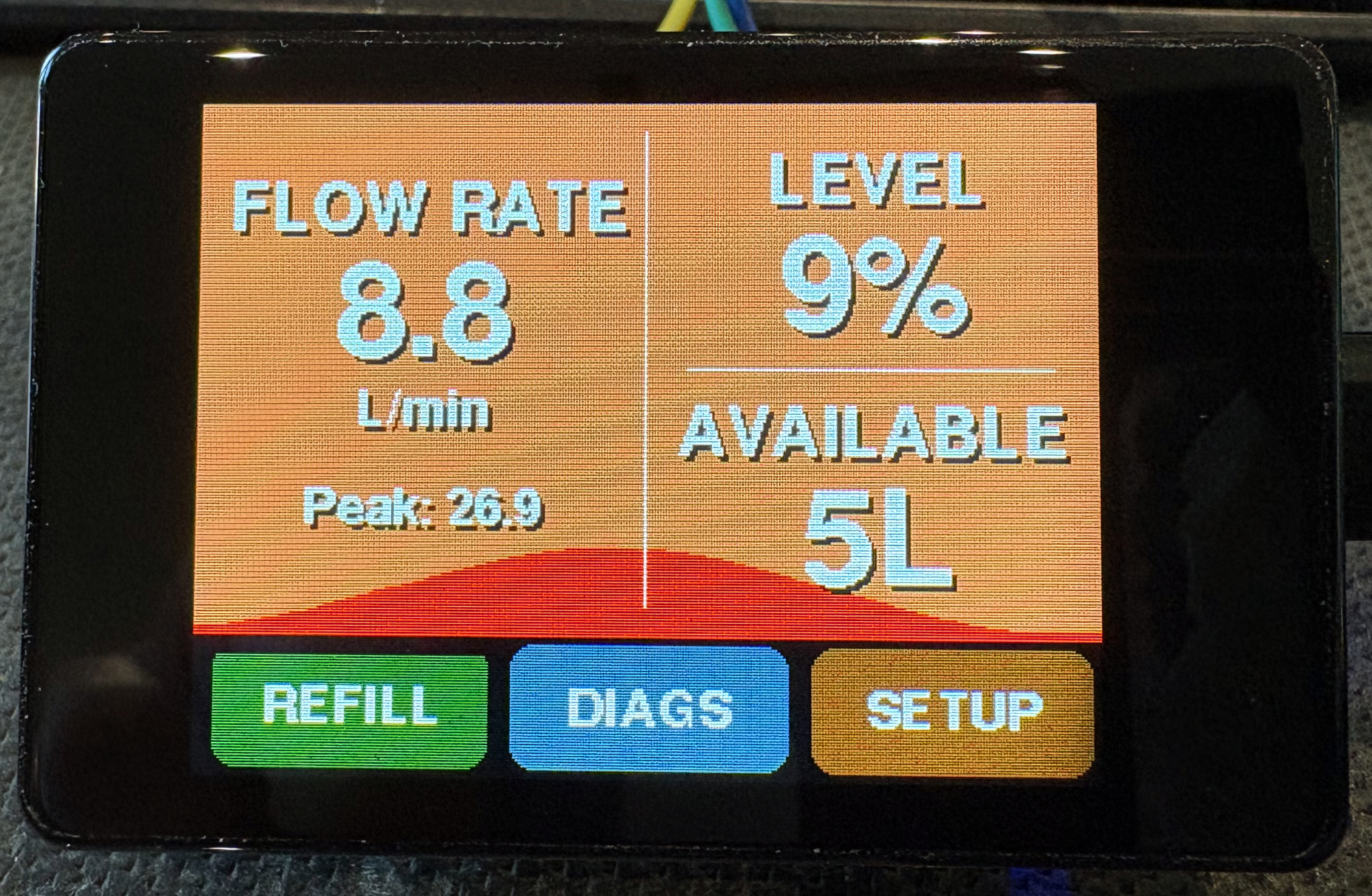
Floydtilla Water Meter main screen After a bit of a promotional splash screen the water meter starts on its main information screen.

This quickly shows you the important information, The tank level as a % and the number of litres available, also included is the current flow rate in litres per minute and just for the hell of it the peak flow rate.

The three buttons across the bottom are our main navigation: the REFILL button does just that and should be used once the tank has been refilled, it will reset the tank back to 100% full. BUT it is very easy to just press this button, so to make it operate you need to hold it for 3 seconds and then you will be asked if you want to refill the tank with a Yes/No option.

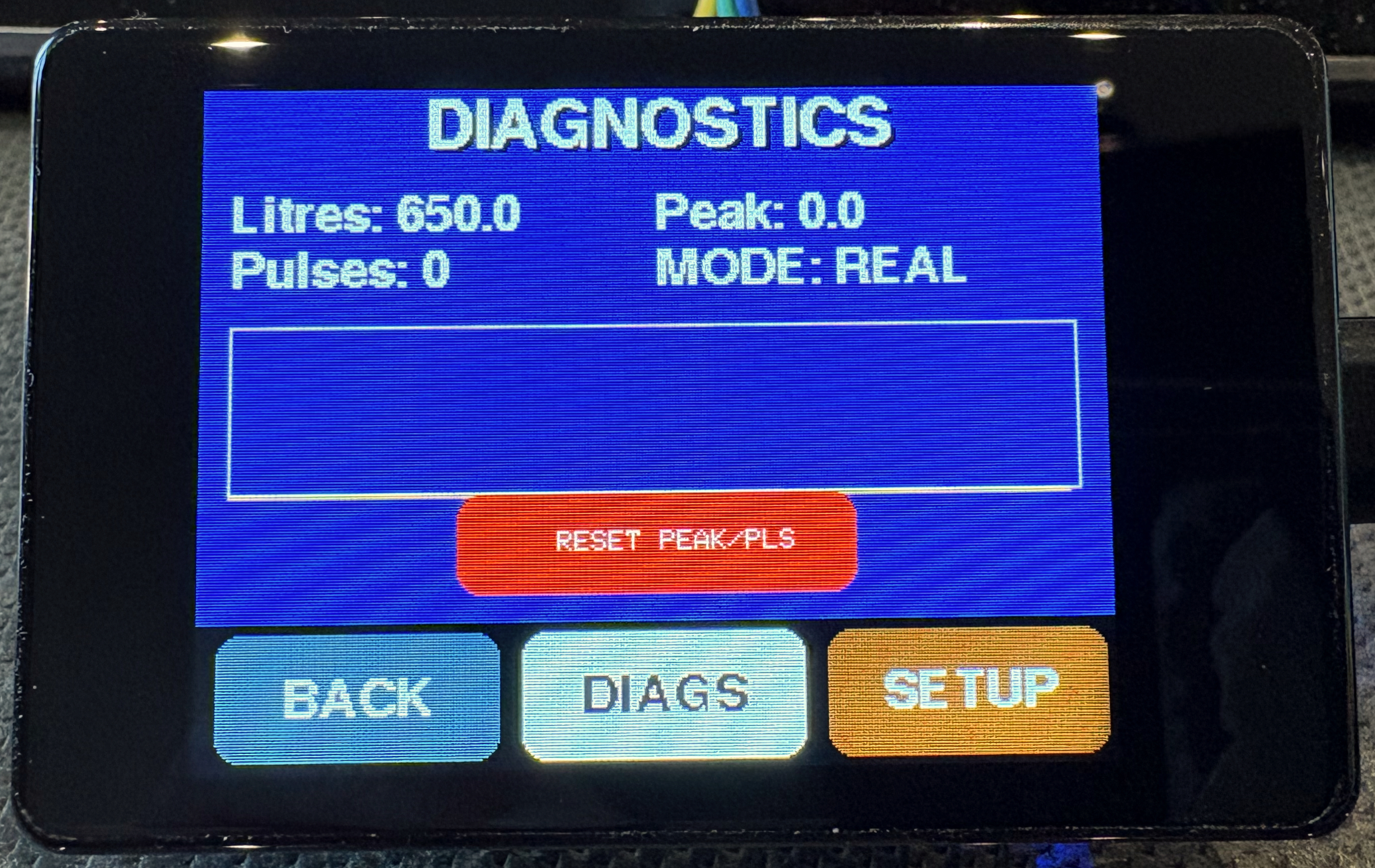
Floydtilla Water Meter Diagnostics screen The DIAGS button takes you to a new screen that has a few options, like seeing the number of pulses the meter has counted since the last reset. This is very useful to help setup the meter so it knows how many pulses there are to a litre. On mine it is 644.

I found this out by measuring 5L of water pass the Flow Sensor a few times and calculating an average per litre.

The pulse counter is reset using the big red RESET button. 

On this screen is a MODE: display, if you touch the DIAGS button again you will put the  meter into DEMO mode, this was added during development of the user interface (UI) so I could see how everything operated, it simulates flow and reduces the volume in the now smaller tank.

The box above the reset button is a graph of the flow over approx the last 30 seconds, it self scales, so only useful as a guide/fun.

P.S. to get out of DEMO mode press the DIAGS button again and the system will toggle from REAL to DEMO, it should, when returning from DEMO mode, remember the last water level in the tank so you can try it at any time.

Floydtilla Water Meter Setup screen The last button of the three is SETUP, this is where you can customise the setup to your Tank size, the number of pulses per litre, and when to raise the alarm (more on those later).

The timeout option sets how long the display will remain active before switching off (it returns to full brightness when you tap anywhere on the display. 

The  last option on the right LAND can be used to switch the display from landscape to portrait mode, so when you mount this you have the choice.
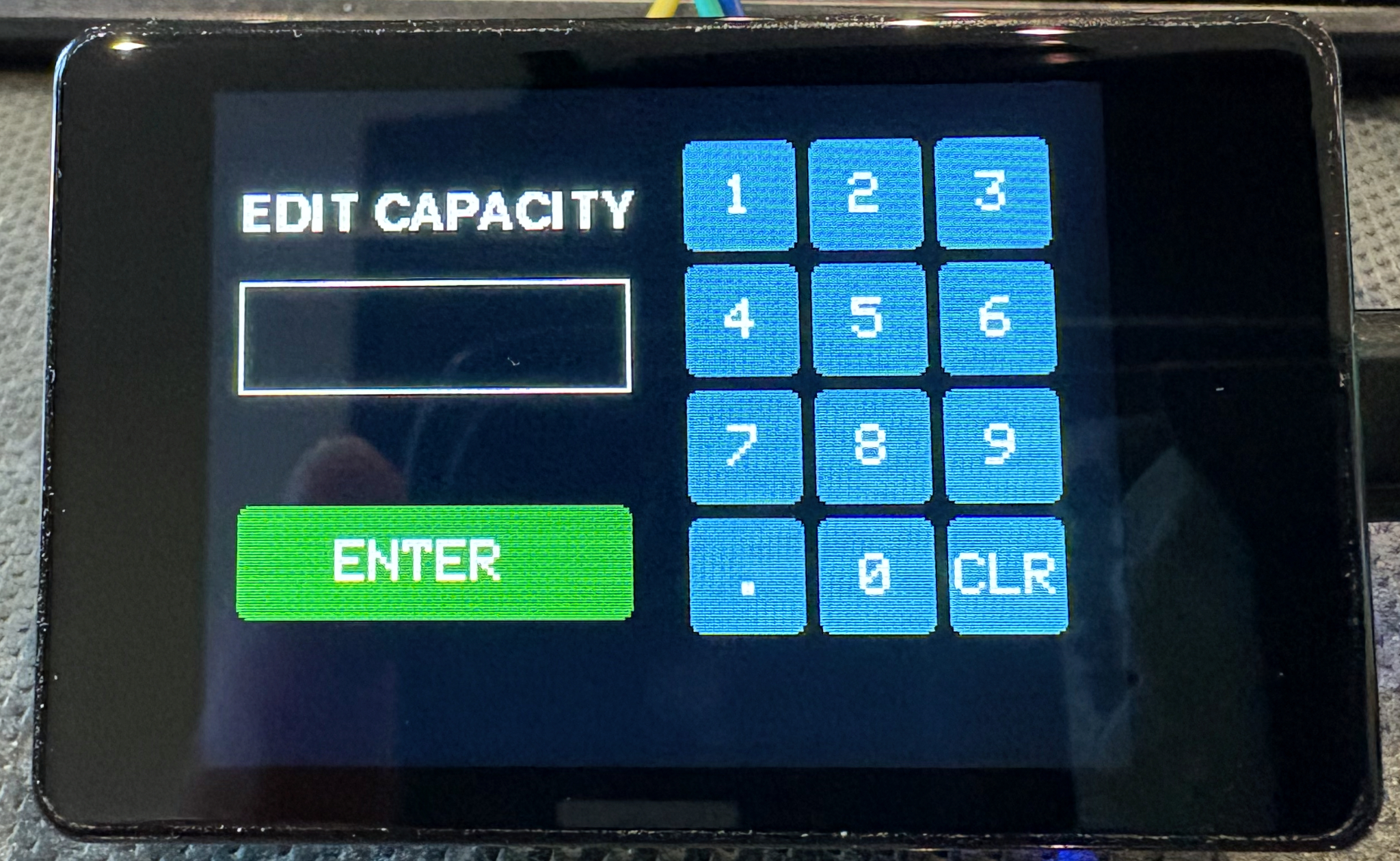
Floydtilla Water Meter Number screen If you tap on a setting box the system will display an edit page where you can enter the relevant value. If you don’t want to change a value just make sure the input is empty and press the green ENTER button

The display in use

Floydtilla Water Meter Blue Wave For a bit of fun I added a moving wave in the background graphic, but the light blue / dark blue is also an indication of the remaining water level.
Floydtilla Water Meter Yellow Wave Another setting you can adjust are the warning levels by default at 30% remaining the background wave turns yellow
Floydtilla Water Meter Red Wave The last warning by default at 10% the wave turns red
The display will switch off if left untouched, but it will wake to 10% brightness if the sensor detects any water flow. I did not want to have the display too bright at night, but I did want to know if water was flowing.

Next Part 4 – installation and testing

Part 2 – Water Meter – AI code development

To see what happens I decided to give an AI a shot at assisting me with the code development. The chosen AI this time was Gemini from google (Other code writing AI’s are available).

What had to do first was write down what I wanted the AI to produce, what IDE (Arduino) I was using, the hardware configurations, boards and accessories and how they are wired together.


Example question to AI – “I have a ESP32-C6-Touch-AMOLED-1.32 board that I am using the Arduino IDE to program, can you create a simple test program to see if the display is working”

Resulting in the code :-

#include <Arduino_GFX_Library.hpp>

/* Pin Definitions for ESP32-C6-Touch-AMOLED-1.32 */
#define TFT_BL 32
#define TFT_RES 21

/* Create the data bus (QSPI) */
Arduino_DataBus *bus = new Arduino_ESP32QSPI(
    25 /* cs */, 26 /* sck */, 27 /* d0 */, 28 /* d1 */, 29 /* d2 */, 30 /* d3 */);

/* Initialize the SH8601 AMOLED Display */
Arduino_GFX *gfx = new Arduino_SH8601(
    bus, TFT_RES, 0 /* rotation */, true /* IPS */, 
    466 /* width */, 466 /* height */, 
    0 /* col_offset1 */, 0 /* row_offset1 */, 
    0 /* col_offset2 */, 0 /* row_offset2 */);

void setup() {
  Serial.begin(115200);

  // Turn on backlight (if applicable)
  pinMode(TFT_BL, OUTPUT);
  digitalWrite(TFT_BL, HIGH);

  if (!gfx->begin()) {
    Serial.println("gfx->begin() failed!");
  }

  // Initial Screen Clear
  gfx->fillScreen(BLACK);
  delay(500);
}

void loop() {
  // Test Colors
  gfx->fillScreen(RED);
  delay(500);
  gfx->fillScreen(GREEN);
  delay(500);
  gfx->fillScreen(BLUE);
  delay(500);

  // Text Test
  gfx->fillScreen(BLACK);
  gfx->setCursor(80, 220);
  gfx->setTextColor(WHITE);
  gfx->setTextSize(4);
  gfx->println("ESP32-C6");
  gfx->setCursor(80, 270);
  gfx->setTextSize(2);
  gfx->println("Display Working!");
  
  delay(3000);
}

This example use the wrong driver chip type for the display it had used the SH8601 instead of the GC9A01, after finding this and another few attempts we had the screen working and we could write things on the display.

After getting the display working, I asked it count the pulses from the flow sensor, and using my best guess of 450 pulses per litre, calculate the amount of water that had passed since it was powered on.

Next I added a button to GP2 (pin 7), this for testing was a cheap push button, the other side of which was connected to GND (pin 20), this was used to reset the volume of water in the tank available back to full, but to make is hard to do by accidentally you needed to press it five time with less that a second between presses.

As you can see the connector are very small the pitch between sockets is just 1.27mm, much smaller than the normal 2.54mm pitch I am used to. This becomes a problem later as finding a connector to fit this, but at the moment I am pushing single core wire directly into it.

Restarting with a new board.

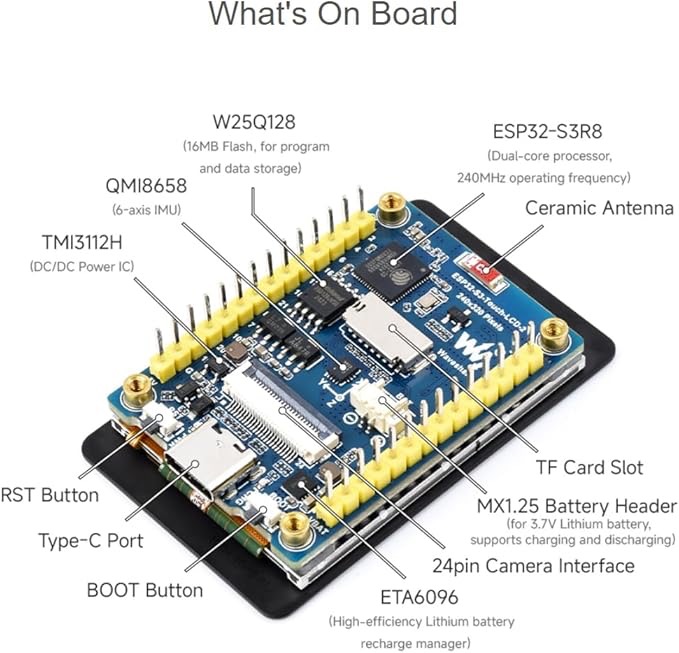
While the original board was working I really wished I had got a touch screen, so I decided to change the display to a Wave Share ESP32-S3-Touch-LCD-2, this has advantage of a larger 2 inch display with a resolution of 240×320, by favourite features was the touch display and the larger 2.54mm spaced pins on the back.

ESP32-S3-Touch-LCD-2
ESP32-S3-Touch-LCD-2 Front
ESP32-S3-Touch-LCD-2 back

Now with a better display and a touch screen, I started experimenting with the AI development and I learned a lot about using the free level AI for this type of development.

  1. Only make one update at a time, only ask the AI to make a single up date, don’t be to ambitious and try to add to much at once, it may work, but my experience is that it will not always end well and you may find you have lost features to expected to remain.
  2. TEST, test and test again, after each update make sure it does what you expect and that you sill have what you had before the update still working.
  3. If you get compile time errors, feed then back to the AI, it will probably fix them without a problem.
  4. Circles (going around in), early on when getting things like the display working, it recommended libraries I did not have installed, these can be difficult to get working if they are not designed or modified for your board. I have been around a few hours of created some code, inputting back in the compile errors, to have the AI confidently tell me they next iteration would fix all the problems, only to find a few steps later we where back with the same setting that had failed in the first place – What I tried and it worked for me was to find an example for the board I am using and feed that code into the AI as a working example of say the display working and ask it to try the same methods.

What I did find if I was patient and will to try things and maybe have to revert back to a working version if needed, this method saved be 1000’s of hours of development time and helped me produce a working product, sometimes I had to study the code it produced, but most of the time, you can get it to fix a problem once you understand what could be going wrong.

Part 3 – How to operate the system the user guide

Part 1 – How much water is in my tank (Possible Solution)

This is the eternal question normally just before taking a shower or putting on the washing machine. On a boat first hired we had a water gauge, but it did not work very well, most of the time it did not move. When we got our own boat, it did not have a gauge and we tended to fill up as often as we could. I researched retro fitting a sensor in the tank, but it seemed to be a lot of hassle with limited chance of success and a lot of hassle to fit, including cutting a hole in to top of the tank.

Now four years later on I had an idea, I know the capacity of my tank 650 Lts, so if I measure how much I have used after each fill up I should be able to make a good guesstimate of the remaining level.

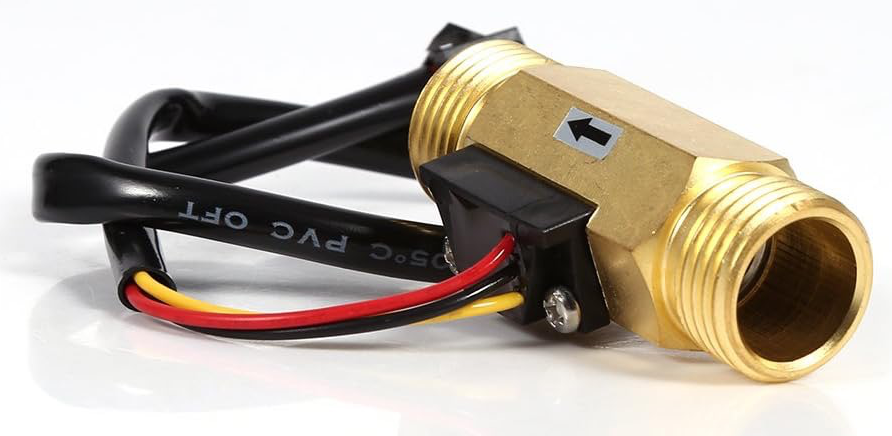
From amazon I purchased for about £15 (approx.$12) a water flow sensor, its maximum water pressure is 1.75MPa (Approx 253 PSI), the range of flow is from 1L/min to 30L/min. I had installed a new pump a couple of years ago and this could output up to 15.1L/min and a pressure of 25 PSI so well within the spec of the flow sensor.

The only specification for the flow sensor I could not find was the number of pulses per litre, what I did find was they seem to operate between 450 and 650 pulses per litre, so I will have to test this later.

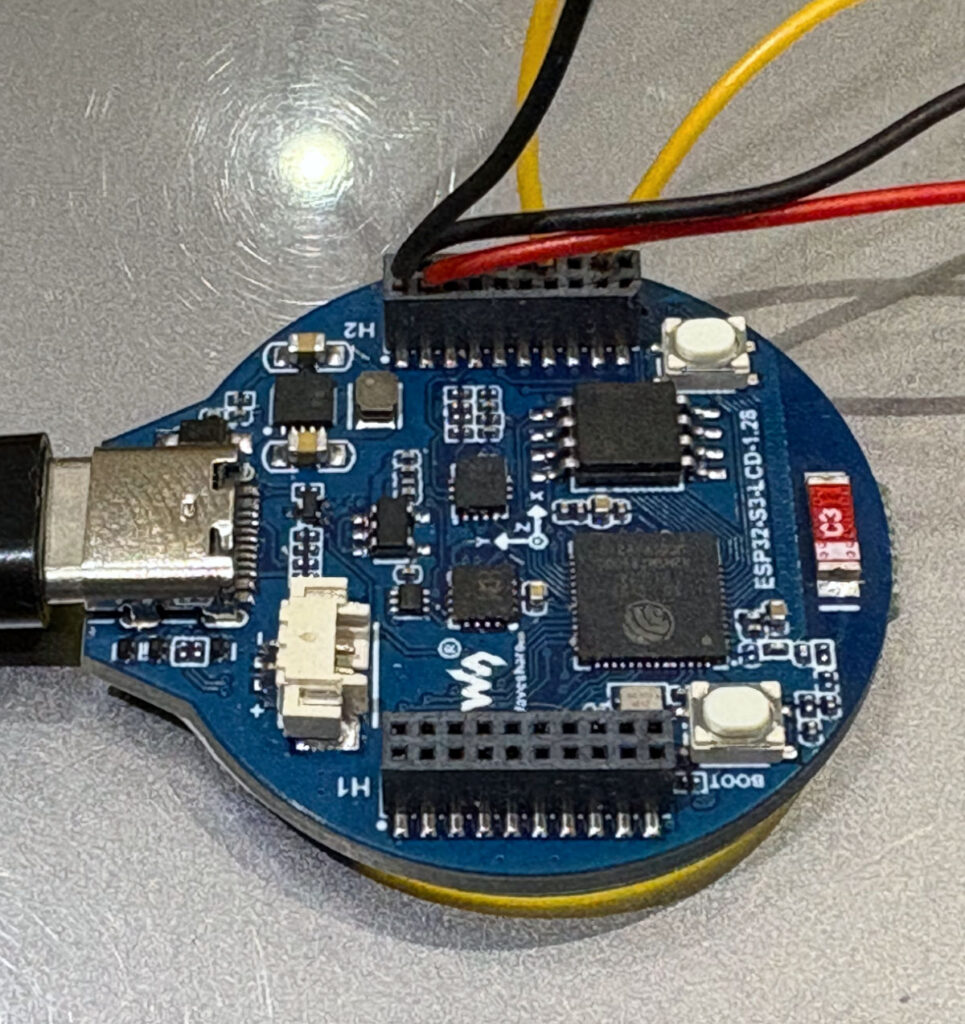
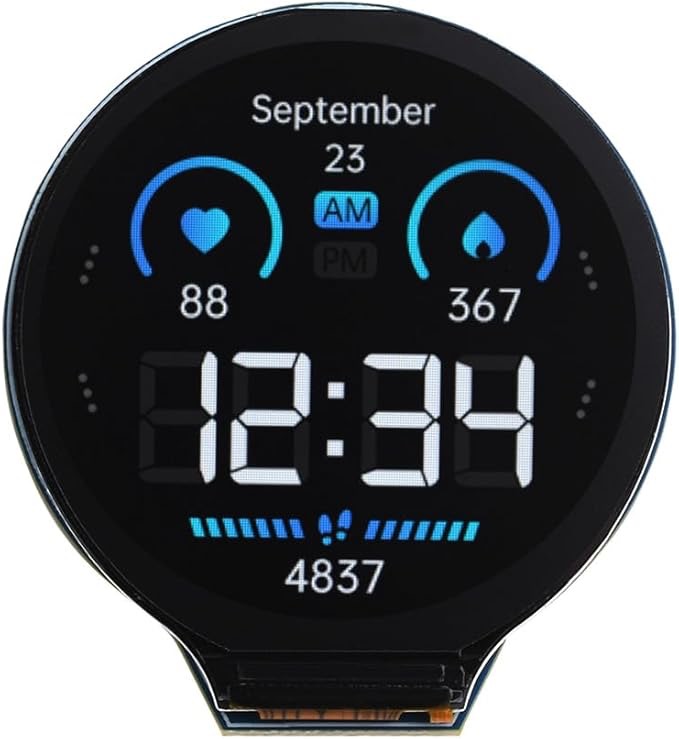
Next I ordered a micro controller with a built in display, I wanted to use the Arduino IDE for the code development as this keeps life simple and I have use it before. On Amazon I found for £20 what looked like a good starting point the Waveshare ESP32-S3 Development Board with 1.28inch Round LCD Display This uses a ESP32-S3 32-bit LX7 Dual-core Processor and includes a GC9A01 Driver Chip for the display.

This information means I can easily find drivers/library for the display and look at other peoples code examples. The manufacturer also provide a wiki full of examples I should have probably pick the one with the touch screen, but more on that later.

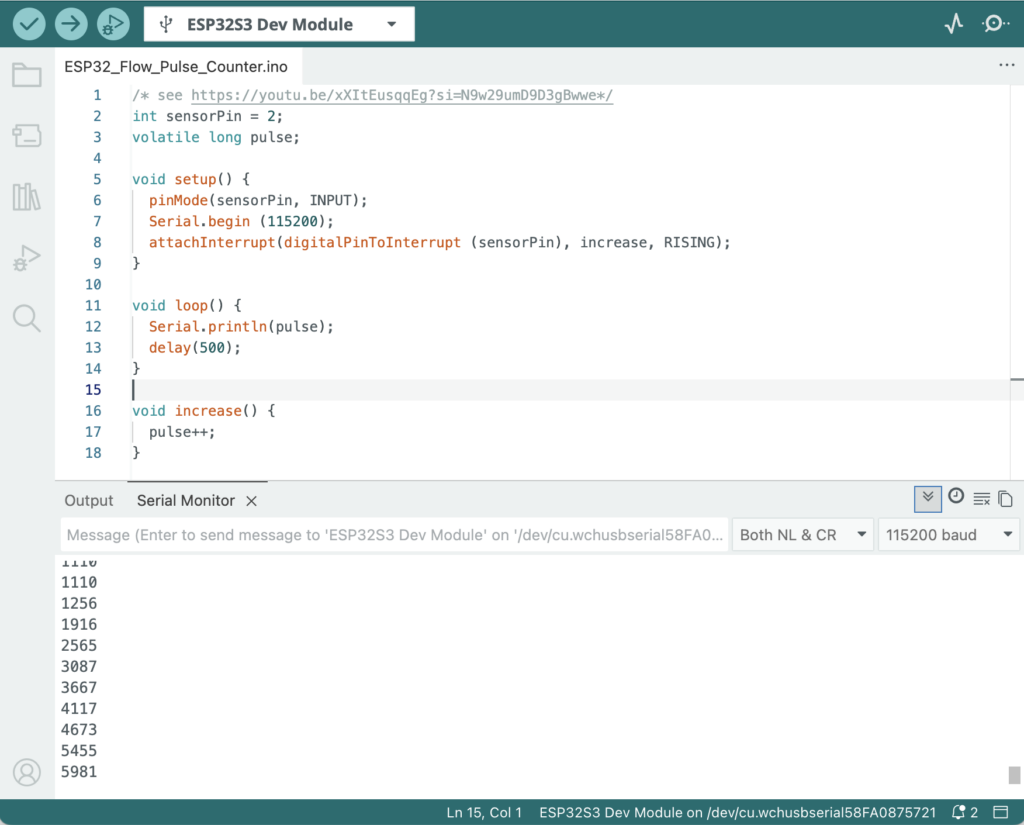
The first code I created was very simple and based on a video on YouTube this enabled me to blow air down the flow sensor and see the pulses on the Arduino IDE serial monitor. Don’t worry if this makes no sense. Basically inside the flow sensor is a small propeller that turns as the water flows past and each time it turns it sends a small electrical pulse up a wire.

The three wires from the flow sensor a red and black for power and a yellow for the pulse signal I wired to the (General Purpose Input/Output) GPIO pins on the back of the Waveshare ESP32-S3 Development boards H2 connector.

The Red wire goes to pin 18 (VSYS), the Black wire goes to pin 19 (GND) while the yellow wire was routed to pin 3 (GP4).

This was enough with the simple code to see the pulses from the flow sensor display on the Arduino IDE Serial Monitor (This is not generally seen, but can be used by the programmer to output information to see if things are working as expected).

Arduino IDE, Simple Pulse Code

Next we need to get the display working on the board and see if we can output the flow rate, and then add a button so we can reset the system when we add more water to the tank (This is where I wish I had got a display with a touch sensor).

Part two – Change of display and software development

Tilting Solar Panels on our Canal Boat – Does it have any effect?

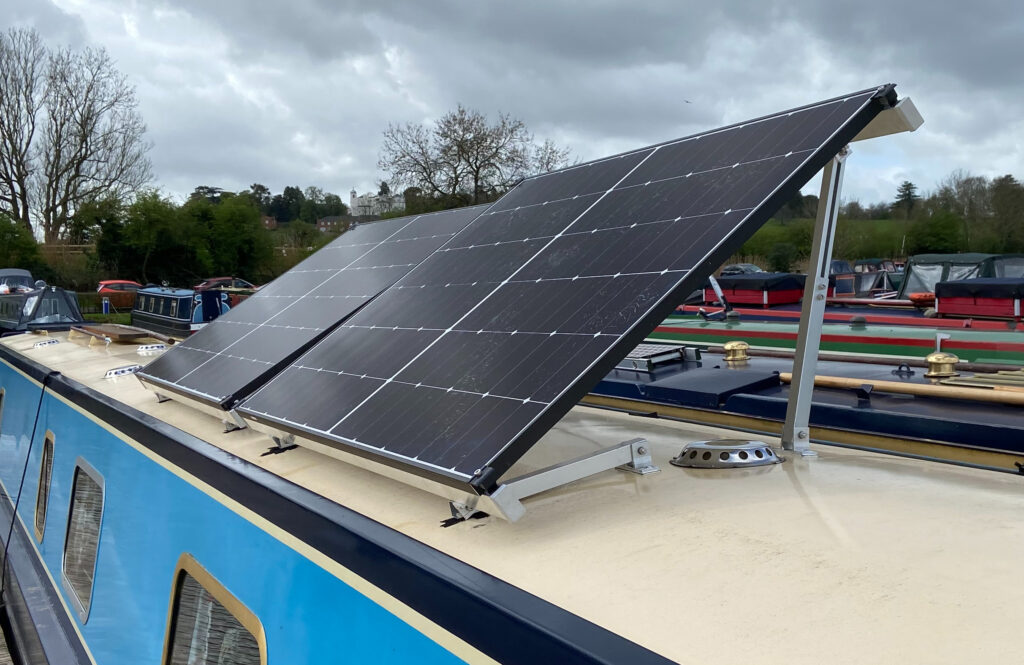
We have fitted two 425W solar panels on tilting mounts, so we could have 850W of solar available on the perfect day, but the best we have seen and I don’t watch this all the time has been about 725W on a good day with the sun directly overhead.

Two Longi Solar 425WP panels mounted on Semi-Permanent Adjustable Mountings from Midsummer Energy

We have a Victron MPPT 100/50 solar controller, I have articles on our solar installation if you wish to read them.

We normally have our panels flat to the roof, but as we have used a lot of power from our batteries playing with the new toys onboard. I decided to see what the difference would be if I tilted them towards the sun.

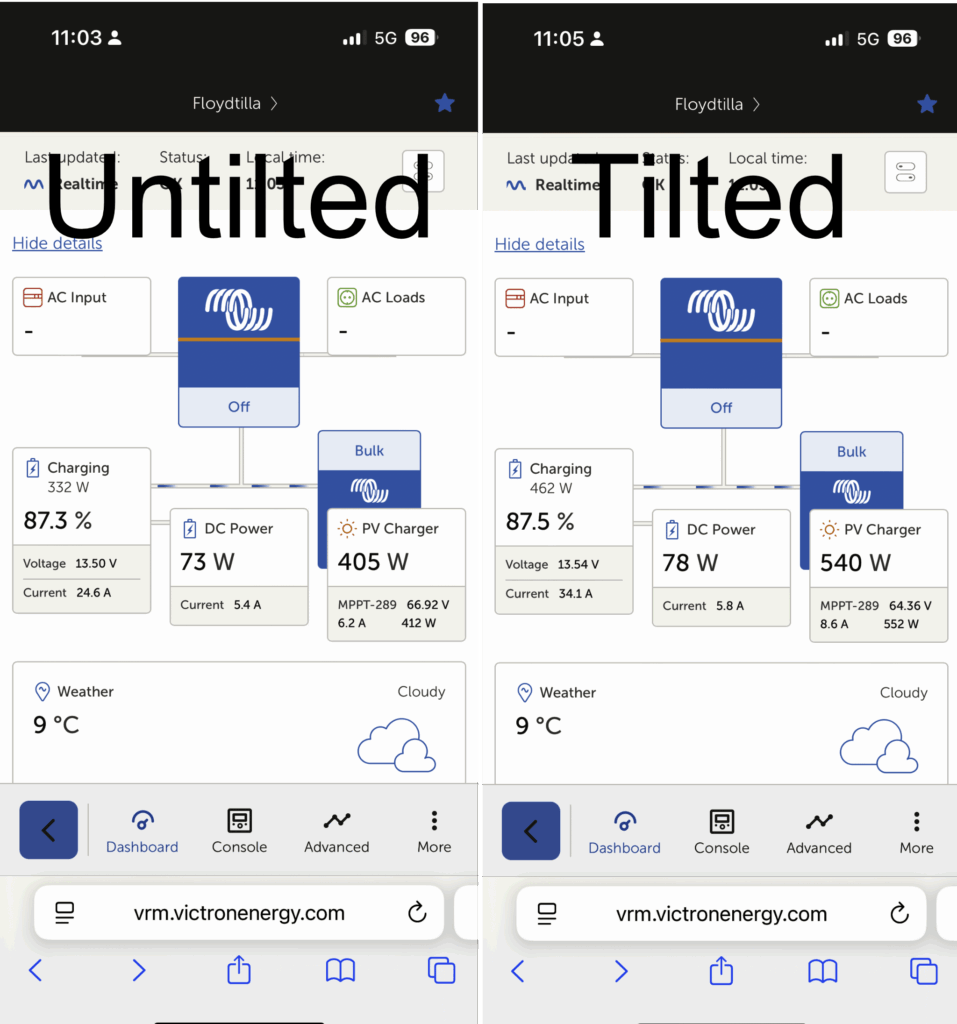
It is late September and flat my panels are producing approx. 405W, which would be fine, but we are in Birmingham between tall building so our view of the sun is time limited at best.

33% Increase in Watts

Tilting the panels at about 400 toward the sun increased the output to 540W which looks like about a 33% increase is my maths is correct.

Tilting Solar Panels

While this increase would not be over the whole day, and the boat has to be in the correct orientation, it would add significantly to our charging for that day.

The DC Power used at that time was our Fridge, Starlink Mini and a RaspberryPi we use to collect this information.